Give your AI the skills that actually work.
One connection, your own set of benchmarked, safety-scanned skills. Your AI sees only the skills you switch on — and loads them one at a time.
See it work in 30 seconds
Add this link as a connector and your AI gets 30 top-rated, security-scanned skills right away: writing, coding, design, video, security and more. When you want to pick your own from 1,000+, make a free account and switch to the full link.
https://mcp.skillzbench.com/tryCustomize → Connectors → Add custom connector → name it SkillzBench Trial, paste the link, click Add. Start a new chat and ask: “What SkillzBench skills do I have?”
claude mcp add --transport http skillzbench-trial https://mcp.skillzbench.com/try
Like it? Create a free account to choose your own skills. Takes a minute.
Claude Desktop, claude.ai and other chat apps
Three steps, no keys: sign up, add SkillzBench to your AI app with the link below and sign in, then pick a starter pack.
https://mcp.skillzbench.com/mcp- Open Customize → ConnectorsIn the Claude desktop app or at claude.ai, open Customize, then Connectors.
Illustration — Customize → Connectors → Add custom connector
- Add custom connector → paste the linkClick Add custom connector. Name it SkillzBench, paste the link above as the server URL, leave the advanced settings alone, and click Add. Works on Free, Pro and Max (the Free plan allows one custom connector).
Illustration — name it SkillzBench, paste the link, click Add
- Connect and sign inClick Connect. A SkillzBench window opens: sign in (or create a free account), choose which skill set Claude should use, and click Allow and connect. No key to copy.
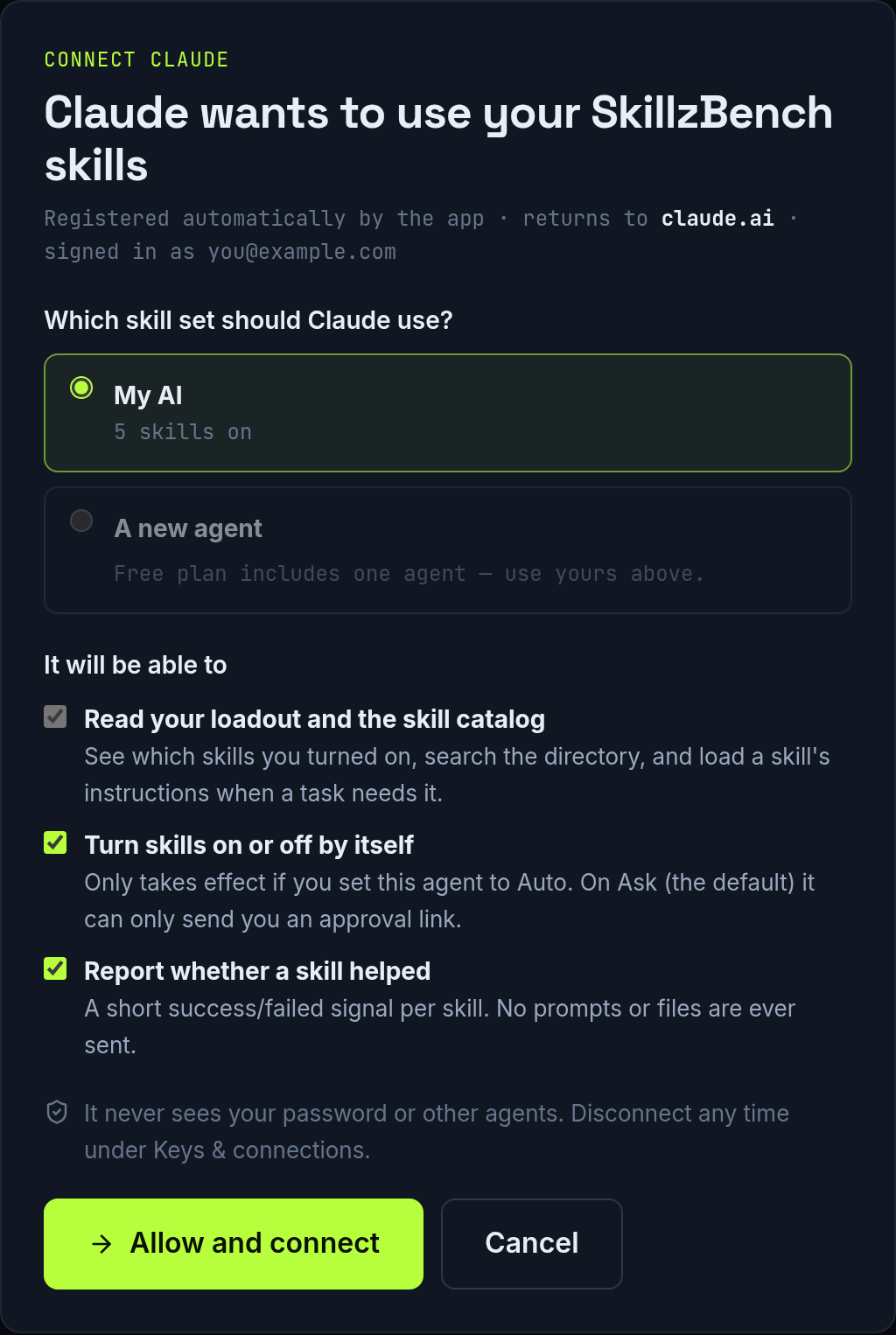
The SkillzBench sign-in window that Connect opens
- Use it in a chatIn a chat, click + → Connectors and make sure SkillzBench is on. Then ask: “What SkillzBench skills do I have?”
Illustration — + → Connectors → SkillzBench on
Already signed in? Open your setup page — it turns green the moment your app connects. Disconnect any time in Keys & connections.
Your agent can install this itself.
One MCP, one key, per-agent loadouts.
/plugin marketplace add SkillzBench/claude-plugin
/plugin install skillzbench@skillzbench
# then /mcp → skillzbench → Authenticate
1. Create an account · 2. Create an agent + key · 3. Paste below.
Set up SkillzBench for me. Add the MCP server at https://mcp.skillzbench.com/mcp with my API key, then install the skillzbench skill described at https://skillzbench.com/agents.md, and tell me when it's connected.
Claude Code
claude mcp add --transport http \
  skillzbench https://mcp.skillzbench.com/mcp \
  --header 'Authorization: Bearer sb_live_XXXX'
Codex CLI (~/.codex/config.toml)
[mcp_servers.skillzbench]
url = 'https://mcp.skillzbench.com/mcp'
bearer_token_env_var = 'SKILLZBENCH_API_KEY'
Cursor (.cursor/mcp.json)
{
  "mcpServers": {
    "skillzbench": {
      "url": "https://mcp.skillzbench.com/mcp",
      "headers": { "Authorization": "Bearer sb_live_XXXX" }
    }
  }
}
Gemini CLI
gemini mcp add --transport http skillzbench \
  https://mcp.skillzbench.com/mcp \
  --header 'Authorization: Bearer sb_live_XXXX'
No key: sign in instead (Claude Code and other OAuth-capable clients)
claude mcp add --transport http skillzbench https://mcp.skillzbench.com/mcp
# then run /mcp in Claude Code and choose Authenticate
How the agent uses it: list_enabled at task start → load only matching skills via get_skill → search and request enabling when a missing skill would clearly help → always ask before enabling. Machine-readable: /agents.md · /llms.txt.